How to Disable OneDrive Personal Vault

This guide explains how to turn off the files-on-demand-in-windows-11/" class="sal-link" rel="noopener" target="_blank" data-sal-id="12906">OneDrive Personal Vault feature.
We recently showed you how to set up OneDrive Personal Vault in Windows 11. The Personal Vault is a secure folder in OneDrive. It requires extra proof of who you are to open it. You might use your fingerprint, face, PIN, or a code sent to your email or phone.
Why use it? It keeps your most sensitive files extra safe. Even if someone gets into your computer, they cannot see these files without your extra verification.
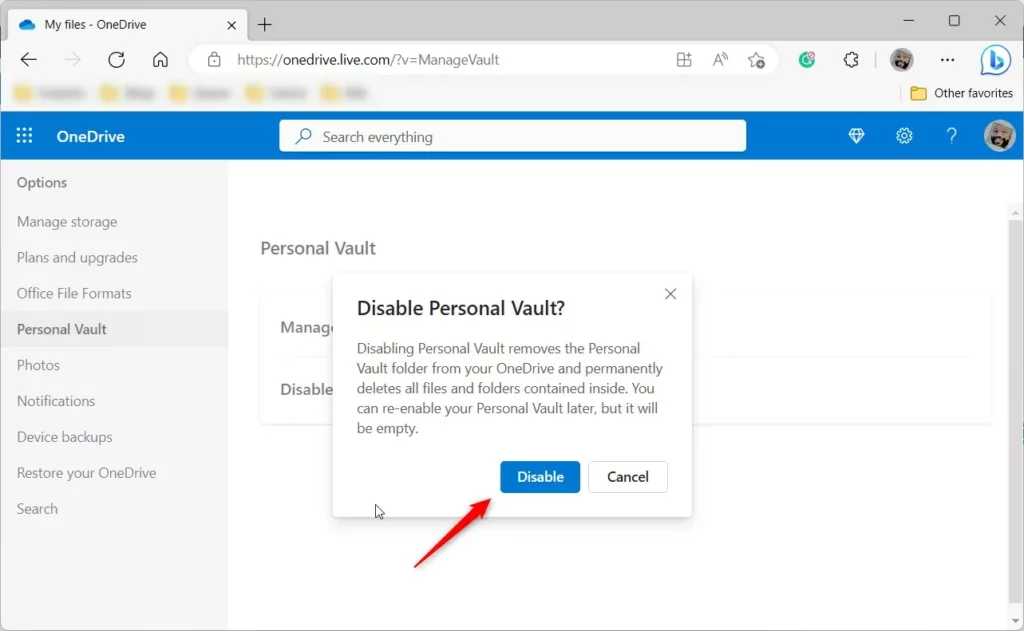
What happens when you are done? If you set up your OneDrive Personal Vault and disable the Vault, it will be deleted from your OneDrive. Everything inside it will be gone forever. You will not be able to get these files back from the recycle bin, so make sure you save them somewhere else first! restored from the recycle bin restored from the recycle bin
How to Disable Your OneDrive Personal Vault
You can turn off your Vault at any time. Follow these steps to remove it.
- Open your OneDrive account page online in a web browser. Sign in with your Microsoft account if you are not already logged in.
- Click the Settings (gear) icon and choose Options.
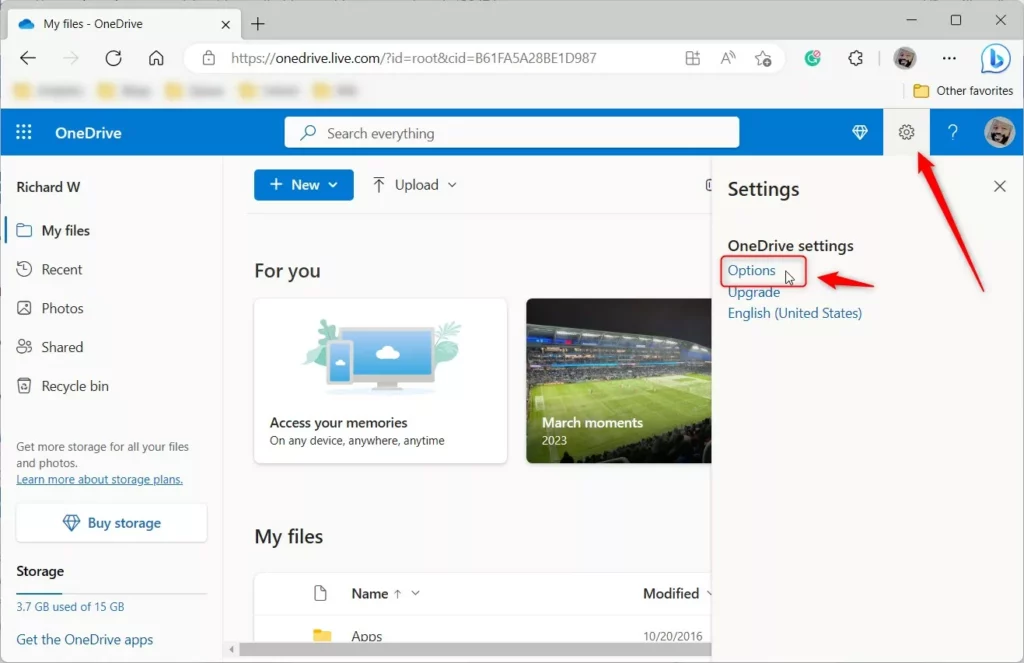
- Select Personal Vault from the menu on the left side of the screen.
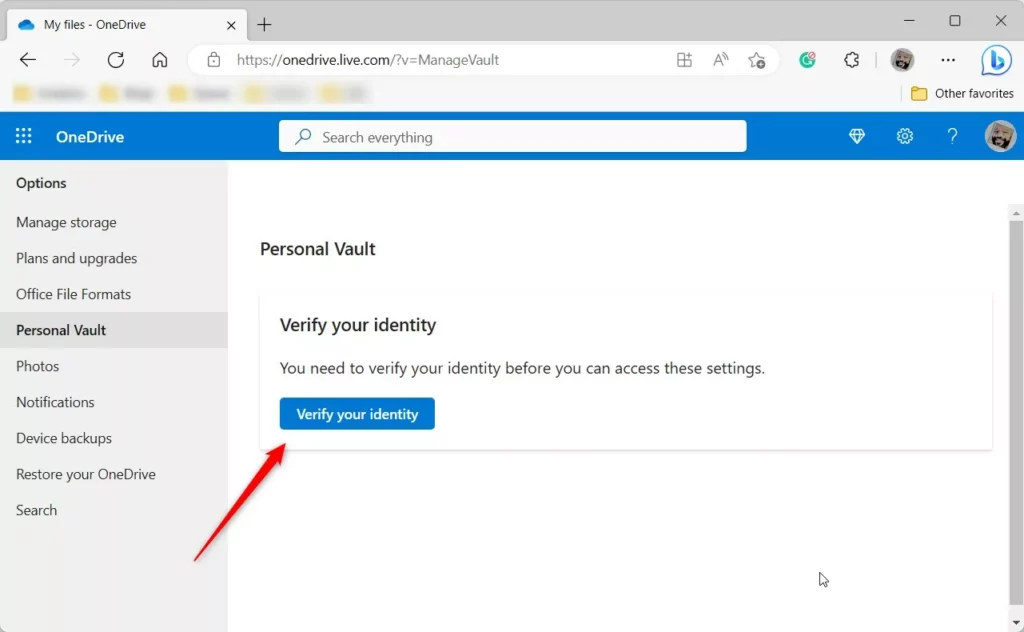
- Click Verify your identity to prove it is really you.
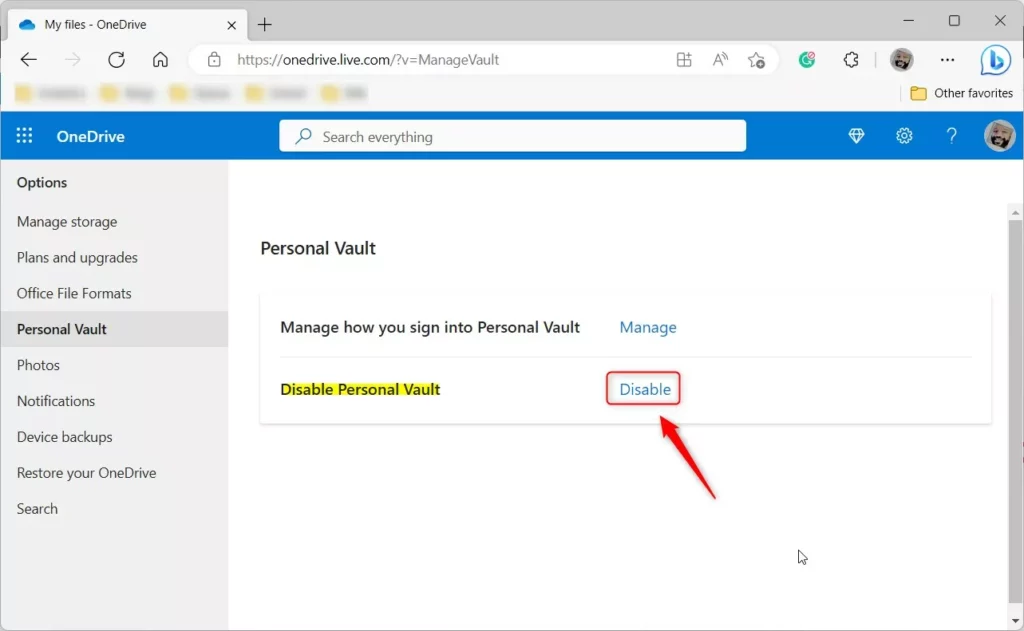
- Once your identity is confirmed, click the Disable link.
- A final confirmation box will appear. Click Disable again to finish.
That is all there is to it!
Summary
Disabling the Personal Vault is a quick way to clean up your OneDrive. Just remember that this action is permanent. Once you disable the Vault, all your files inside are deleted and cannot be recovered. If you turn the feature back on later, the folder will be completely empty. Always move your important files out of the Vault before you disable it.
Was this guide helpful?





I have no disable button.
I tried to disable Personal Vault but don’t get the same screens you show in your instructions – I get a Manage button, click on that and
I don’t get anywhere to Disable or delete the Vault – I get a Manage button, but it takes me to a page for Security settings- no option for Disable or delete
How do I do this as I have multiple issues with files that will not upload. Also – is there a way to empty all the files waiting to upload but cannot?